
Send downloads straight from your browser.
Connect the extension to your DownloadPulse desktop app or server. Right-click a link, use Quick Add from the toolbar, or send from a supported video page. Follow progress and control the downloads you sent from the same toolbar.
Pre-release builds let you try the extension before store approval. Load the Chromium zip unpacked in Developer mode, or the Firefox zip as a temporary add-on (removed when Firefox restarts).


For Firefox and Chromium-based browsers · In 19 languages · No analytics or telemetry

Every way to send.
Point at a download and send it. DownloadPulse takes it from there: it works out where to get it from, and keeps it going until it’s done.


Hover a download link and the send button appears beside it, never over it.
Right-click
Choose Download with DownloadPulse on a supported link to send just that link.
Hover a download
A small button appears beside download links while your pointer is over them, never covering the link.
Select several
Select part of a page and send every link in it as one batch, from the button by your selection or by right-clicking.
Videos
On a supported video page, a button on the player sends the video you’re watching, when you’re authorised to download it. In Firefox, an icon in the address bar too.
Files behind your sign-in
When a Metalink, torrent or NZB file needs you signed in to the site, the extension fetches it in your browser with your own session and sends only the file. Your sign-in stays in the browser.
Quick Add
Paste one or more links into Quick Add in the toolbar menu, from any page, and send them in one go.
Connected in three steps.
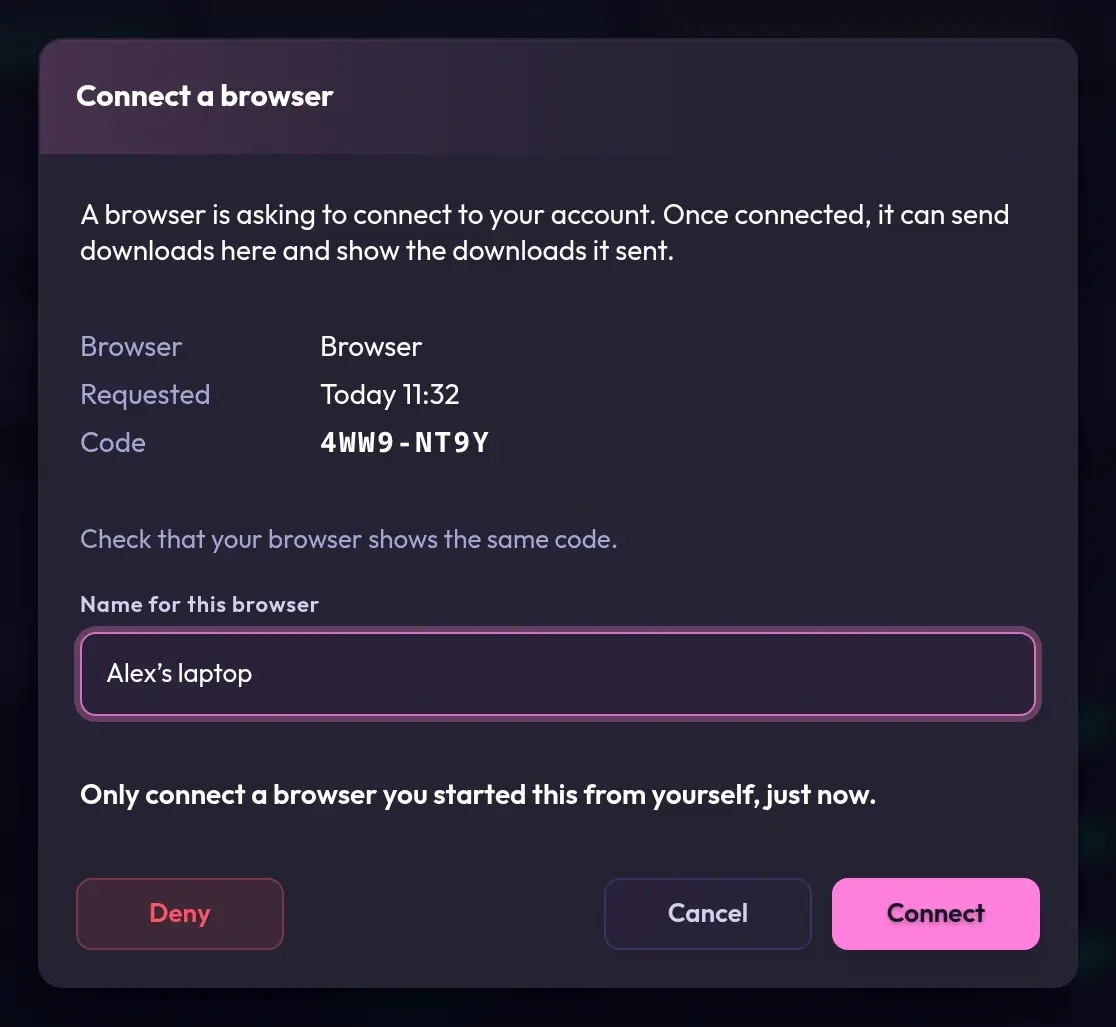
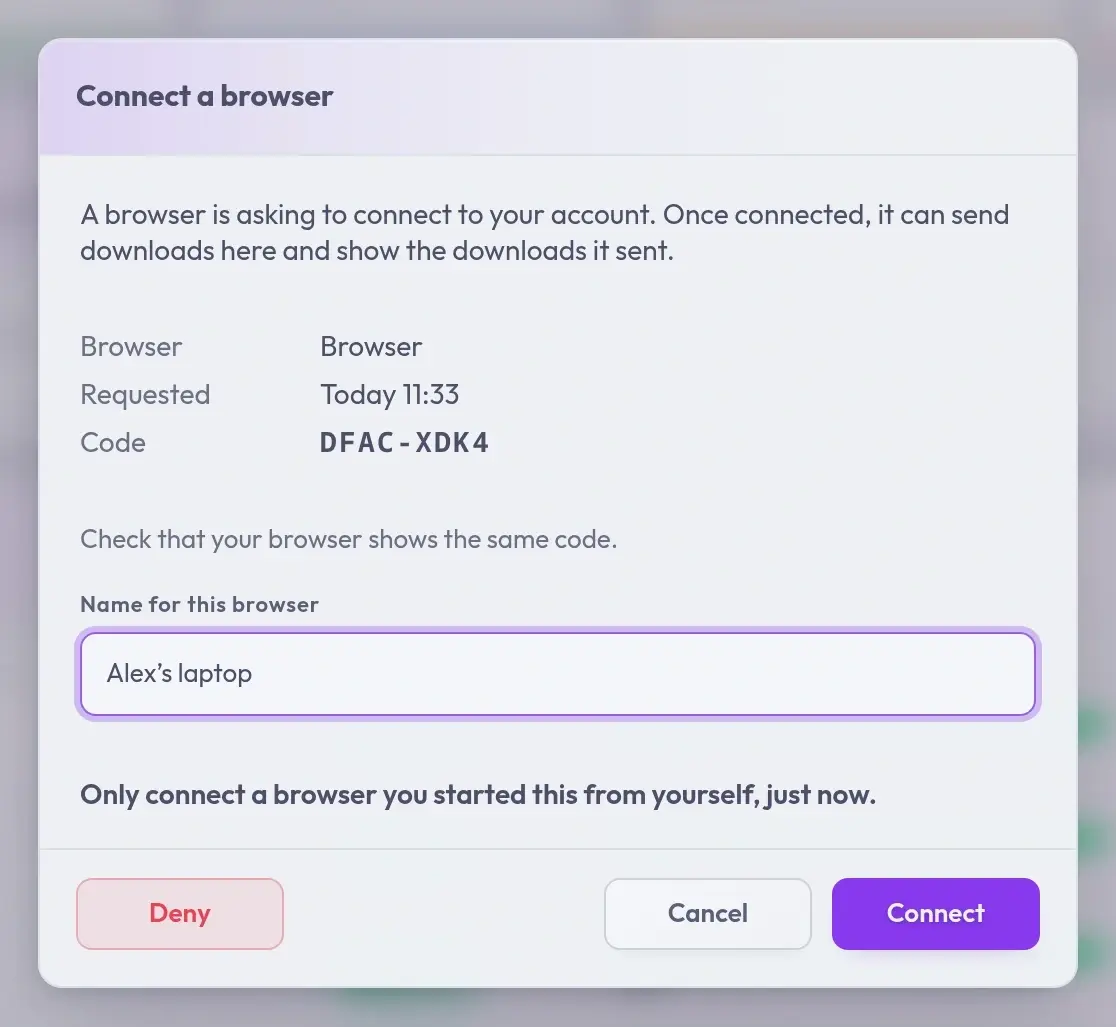
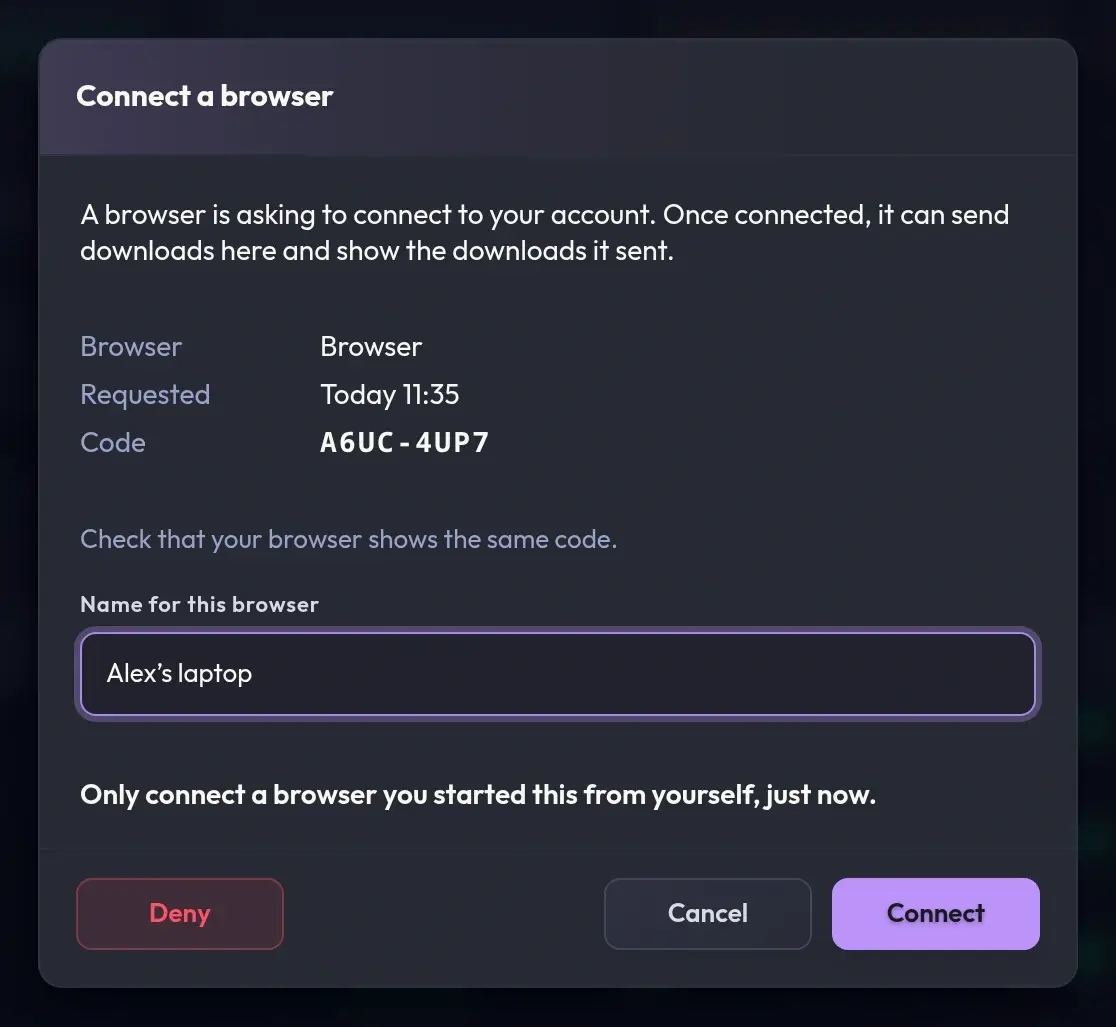
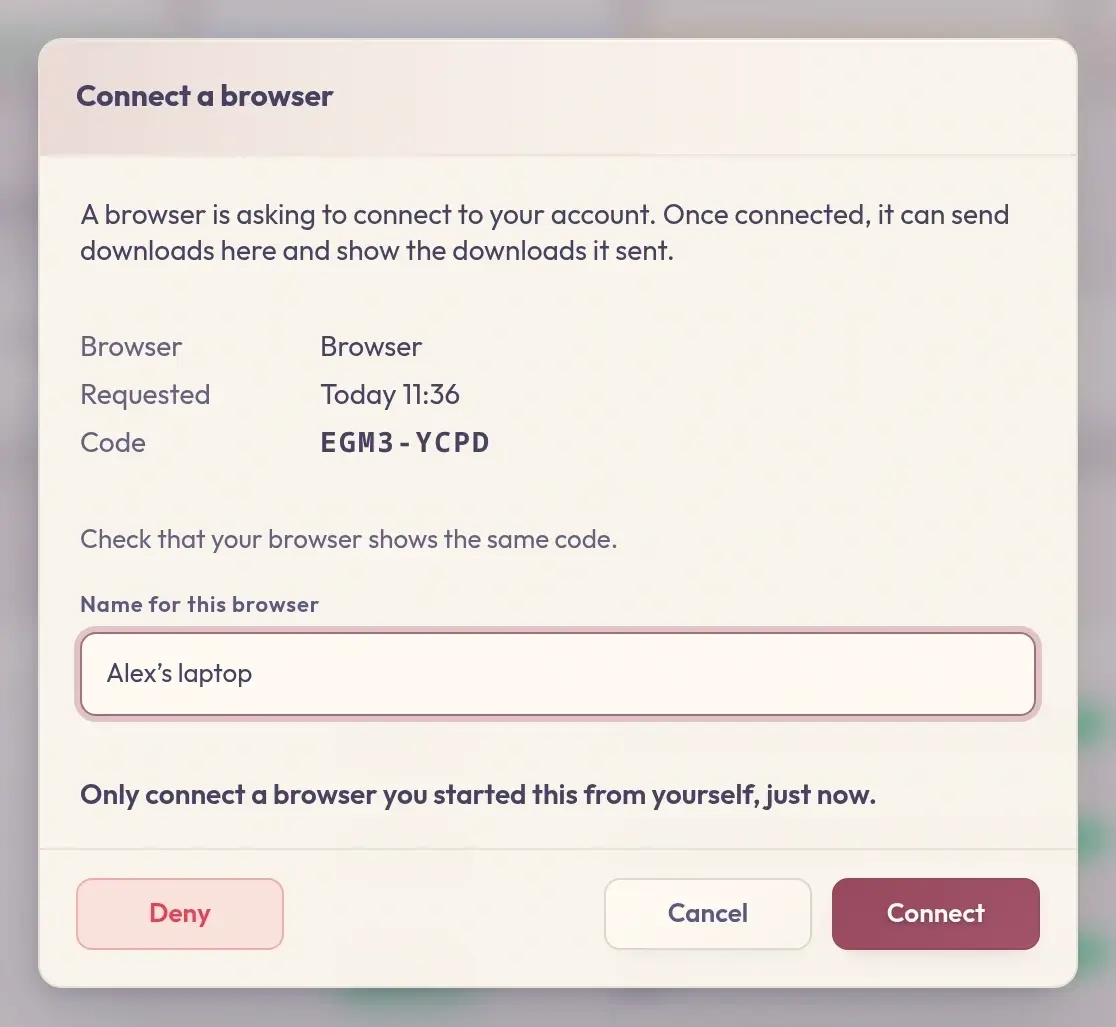
Pair from the toolbar and approve in DownloadPulse. Nothing is sent until you agree.
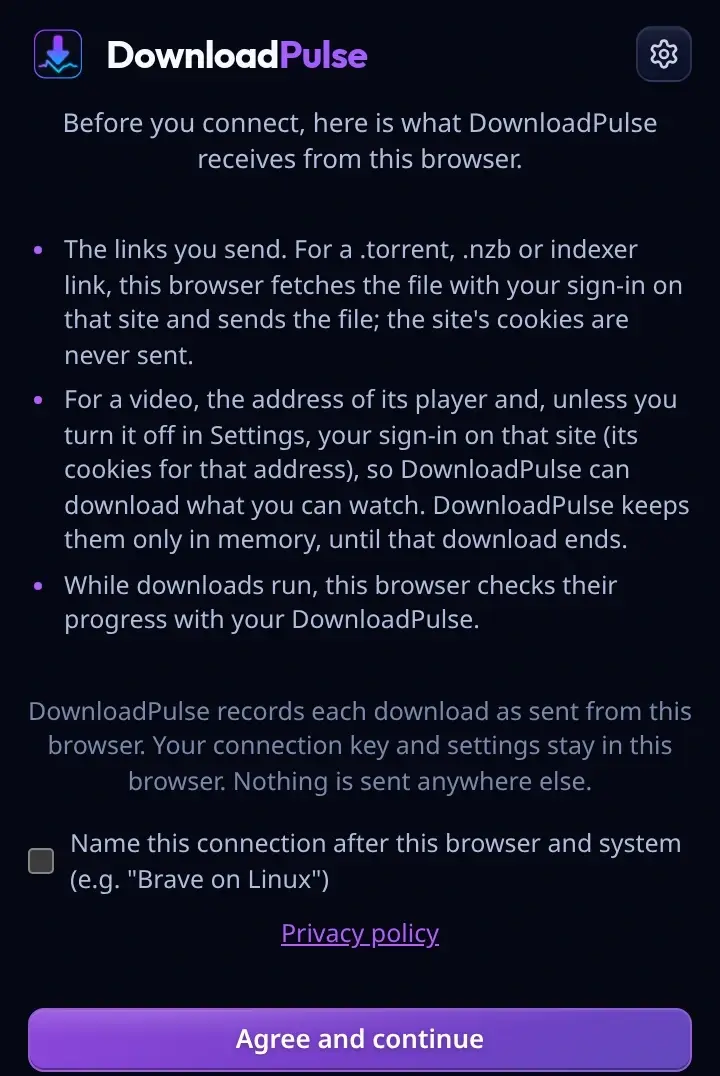
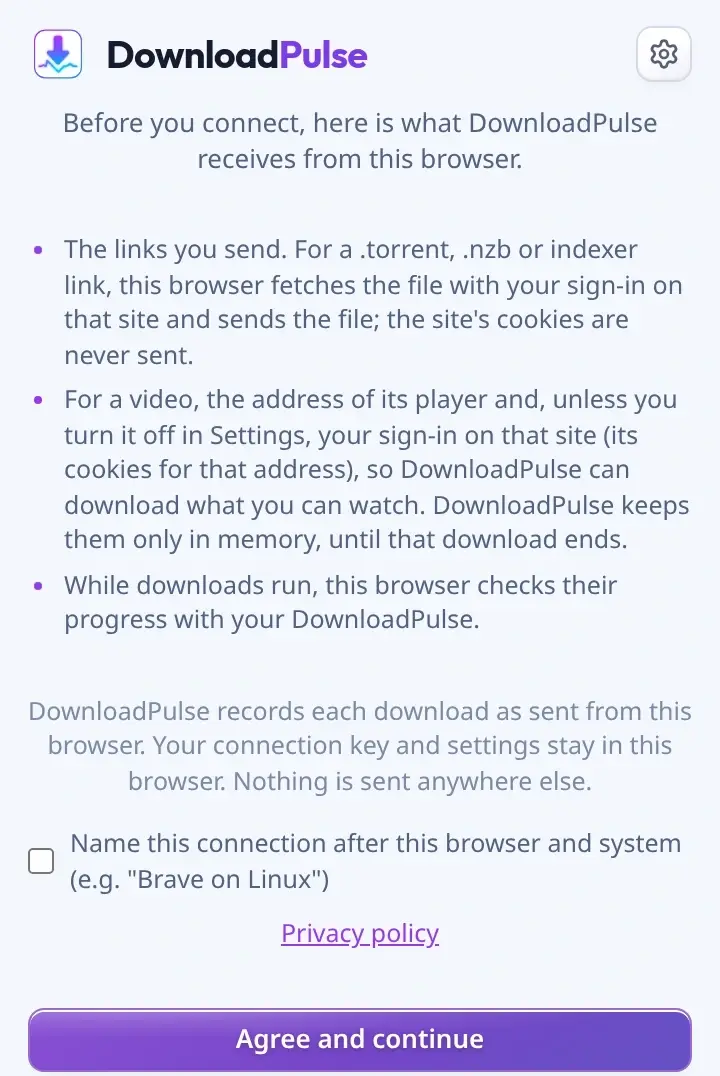
1It tells you first.
Before anything is sent, the extension shows exactly what DownloadPulse will receive from this browser.
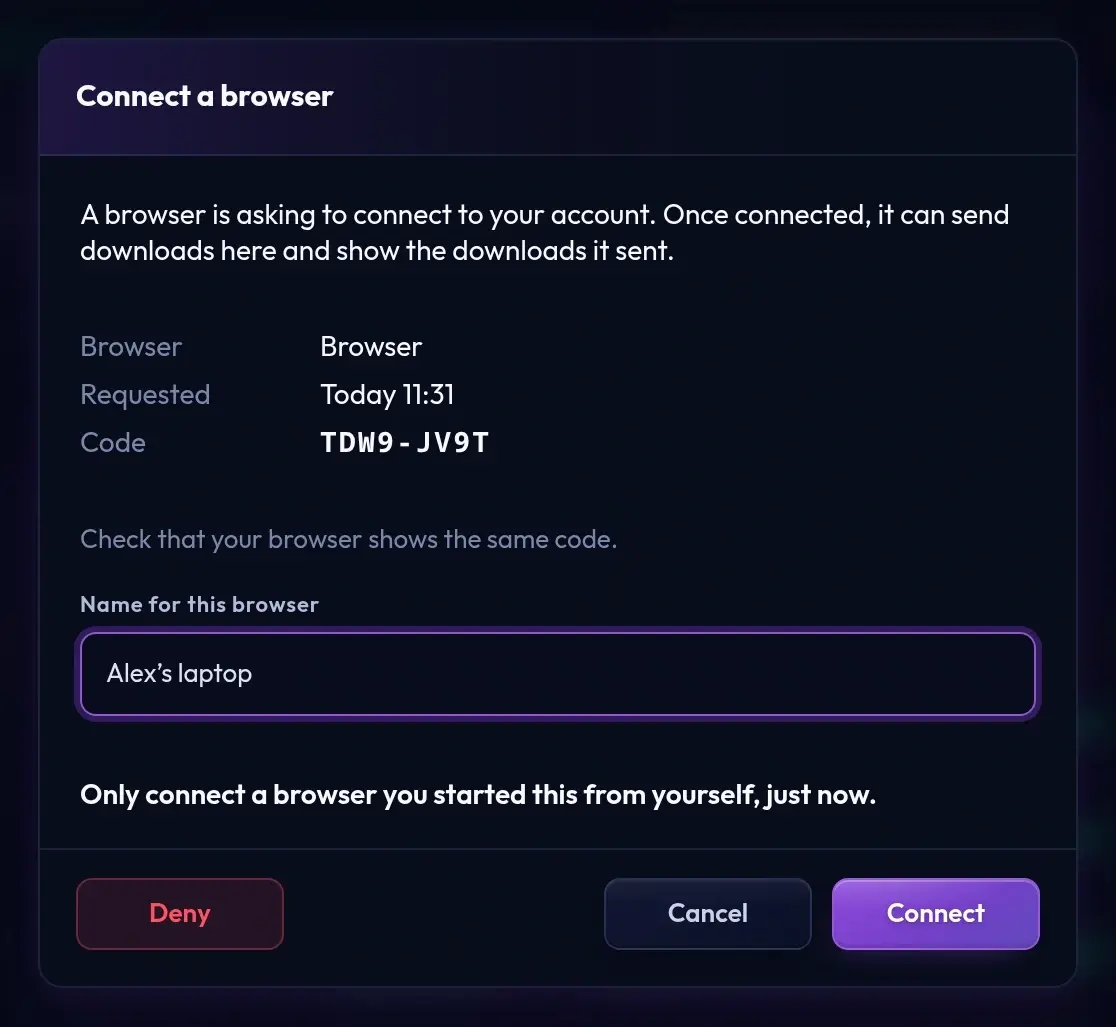
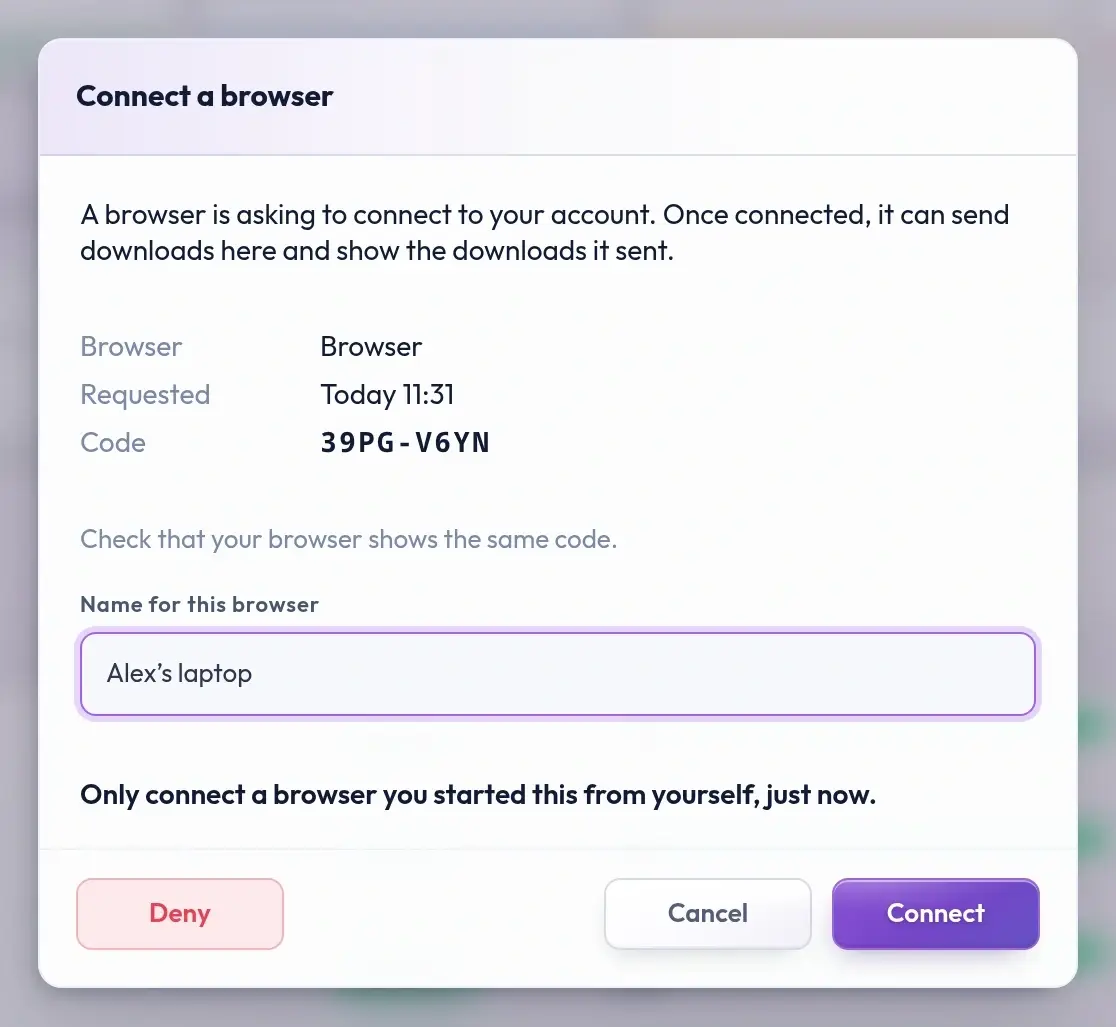
2You approve it.
DownloadPulse asks you to confirm the same code and name the browser. Signed in as you, so it’s connected to your account.
3You’re connected.
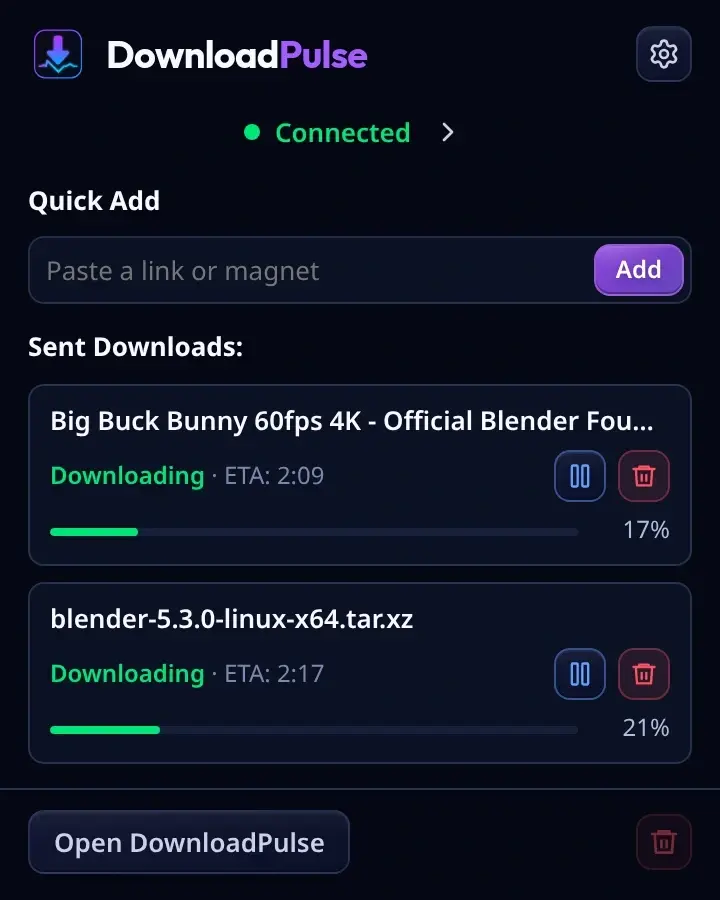
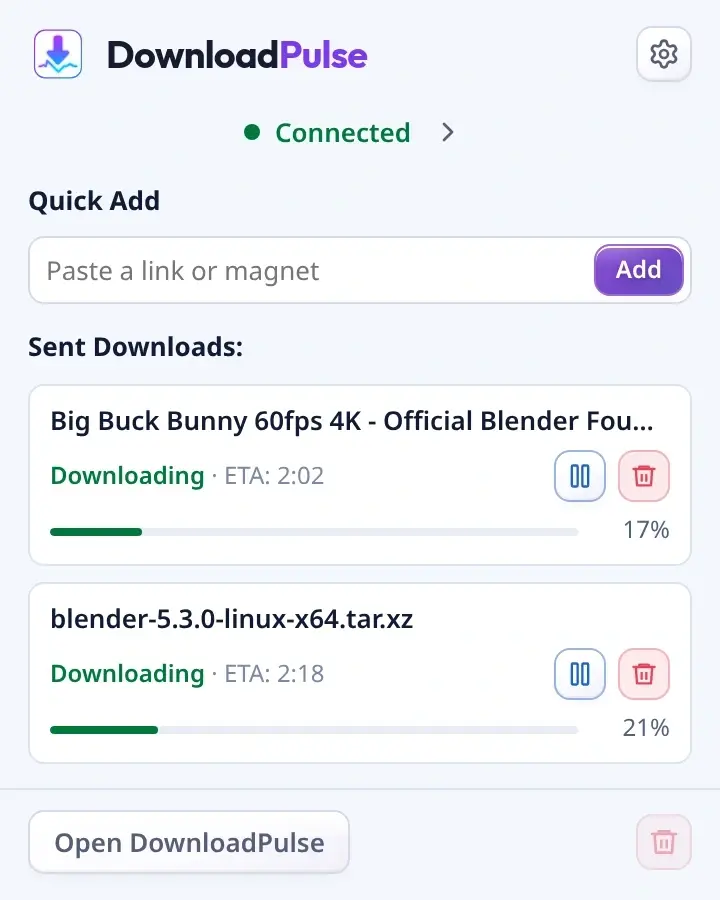
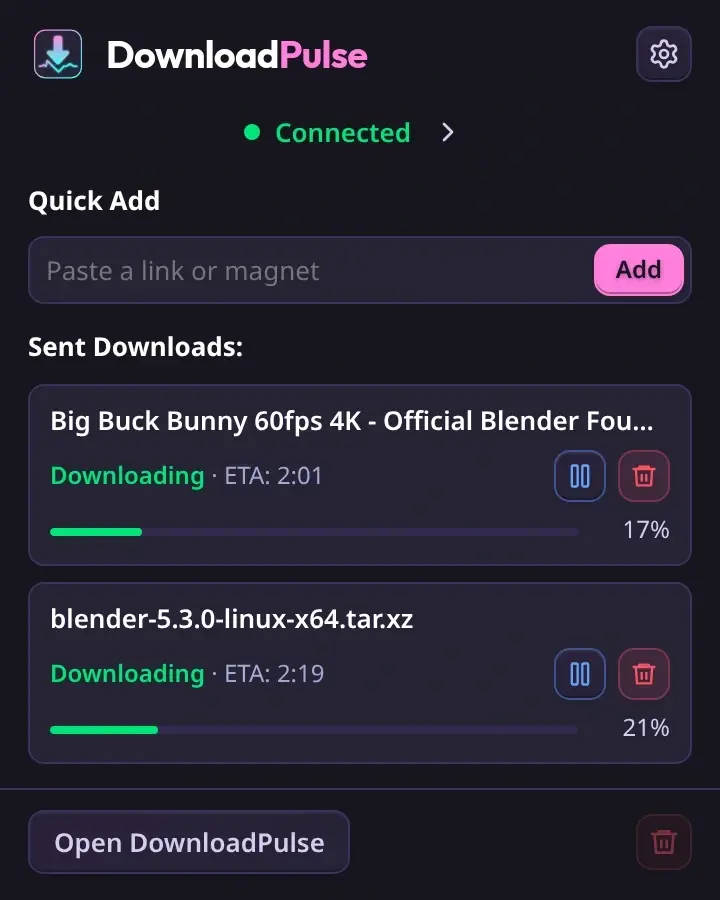
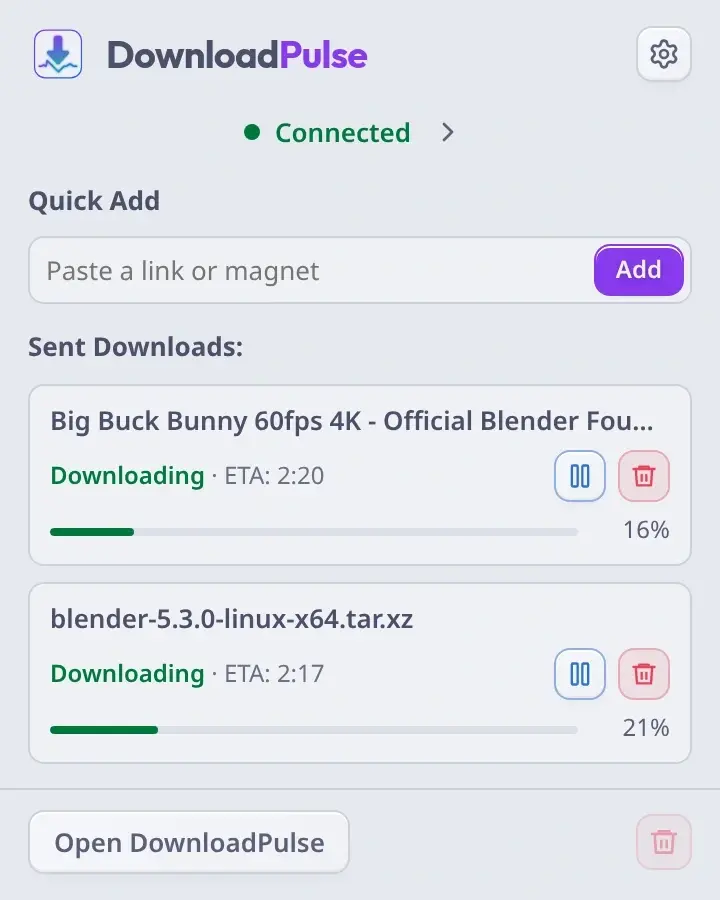
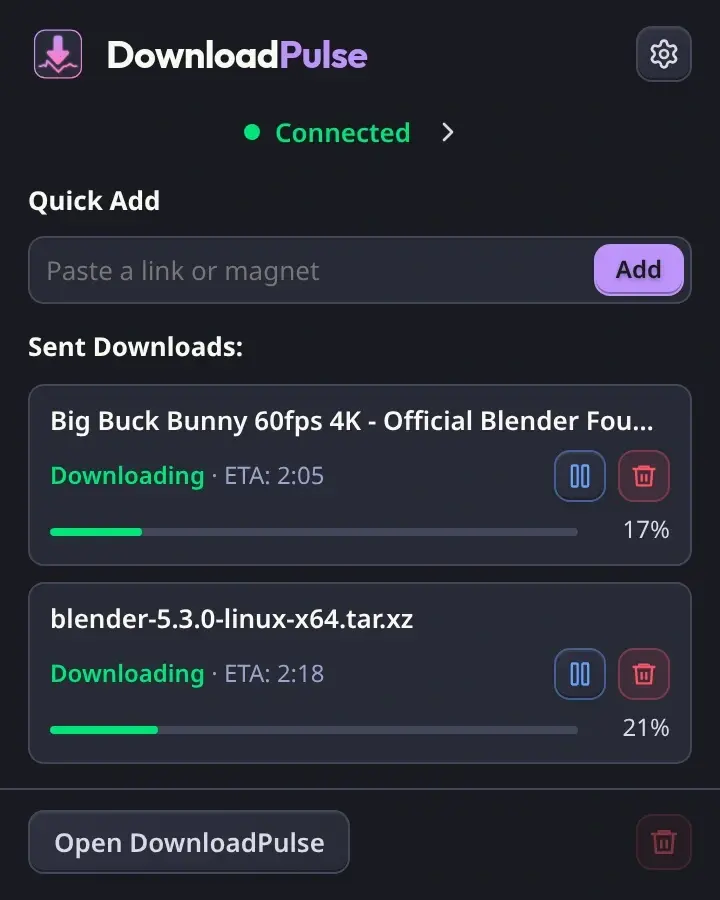
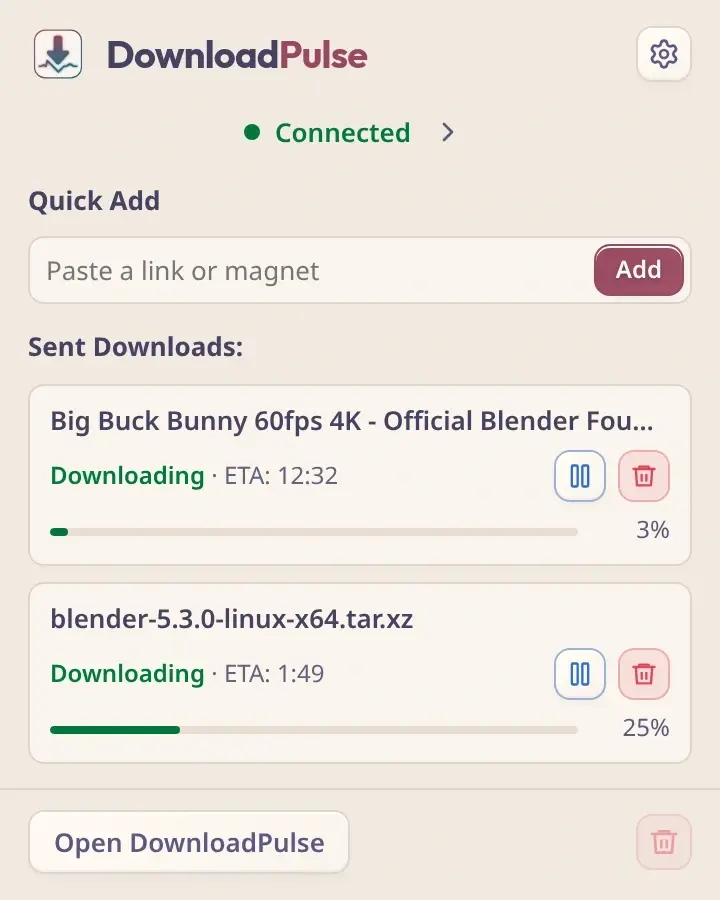
Send from supported pages, and follow what this browser sent right from the toolbar.


Connect to your own account.
No password typed into the extension. It finds the DownloadPulse desktop app on this computer by itself, or connects to your server’s address; you approve it in DownloadPulse.
- Yours, by name. Every request a browser sends is recorded as yours, from that browser’s connection.
- Under your control. See and disconnect each connected browser from your account. An administrator can too.
- HTTPS for internet-facing servers. A server is reached over HTTPS; DownloadPulse on this computer is reached without leaving it. The one exception is yours to make: for a server on your own private network you can choose Connect without encryption, and that connection then crosses your network unencrypted.
Follow along from the toolbar.
This browser’s downloads
Progress and time left for what you sent, with pause, resume and remove.
Activity at a glance
The toolbar mark pulses while something is downloading.
Notifications
When a download finishes, fails or needs attention, each switchable in Settings.
Private by design.
Connects directly to your DownloadPulse. No analytics or telemetry. The extension has no servers of its own: it talks only to your DownloadPulse, and to a website you send a file link from, when you send it.
- Sending a video’s sign-in. Some videos need your sign-in on their site, such as members-only ones. When you send a supported video you’re authorised to download, the extension can include that sign-in: the site’s cookies for that video’s own address, and no other site’s. The option is on by default, and you can switch it off in the extension’s settings. The cookies go only over HTTPS or to DownloadPulse on the same computer, and the server keeps them only in memory until that download ends.
- Nothing before you agree. Nothing is sent until you accept the disclosure shown when you first connect.
- Your browser, your rules. Choose where send buttons appear, skip sites you name, pick what you’re notified about, and disconnect any time.


